显示标签为“android tv box firmware”的博文。显示所有博文

2018年5月24日星期四

How to upgrade for your Magicsee IRON / IRON+ TV box via SD card?

  How to upgrade for your IRON / IRON+ TV box android 7.1 via SD card?
 

If you want to upgrade your Magicsee IRON tv box to the latest and greatest operating system - Android 7.1.2 Nougat . we provide several steps to help you make it.


1:First you need to make the following preparations
⑴The carpacity of more than 2GB TF Card
⑵TF Card reader
⑶A metal pin or toothpick
(4)Download the firmwar and burn card maker, download link below:
IRON+ DDR3 Android 7.1.2 firmware 20180120
IRON Android 7.1.2 firmware 20171125
Burn card maker:

2:To insert TF card reader into the computer USB port


3:Install the tool “Burn_Card_Maker”

4:Select your SD card.
5:Format the TF card.


6:Open and select your file(The file is img format and the file name is not spaced,Like this: aml_upgrade_package_20170606.img).


7:Click Make menu burn the img file into the TF card.

8:Burning....Please waiting...
9:Burn success.

10:Take out TF card,And inserted The TF card into IRON/IRON+ TF card slot.
11:Press the reset button in the AV hole with a toothpick or pin,Hold on,Keep pressing.

12:Connect the power.
13:When the TV screen appears the following picture,Take off the pin.


14:Waiting for the update to complete,IRON/IRON+ will be restart.
15:Android system boot success.


Attention:If any other accidents occur,Upgrade failed,Please operate again from the eleventh step.

Enjoying your TV BOX !

2015年4月30日星期四

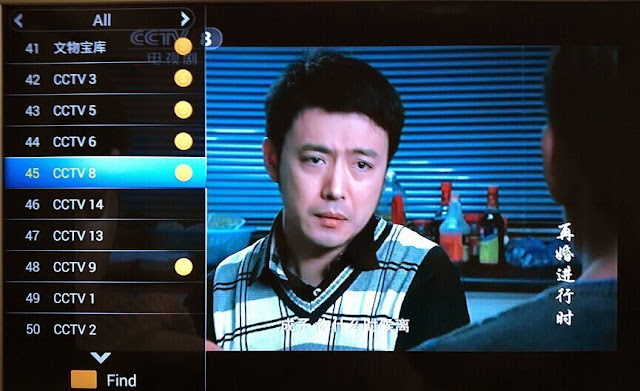
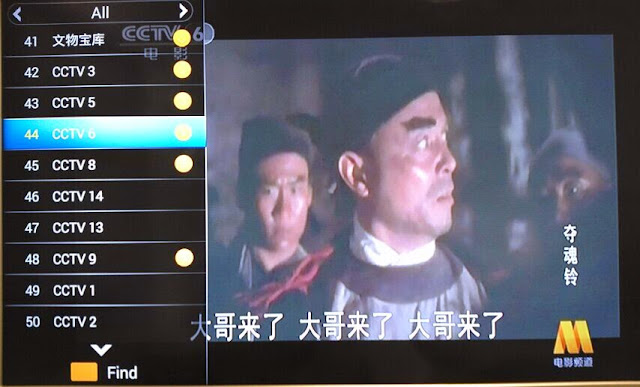
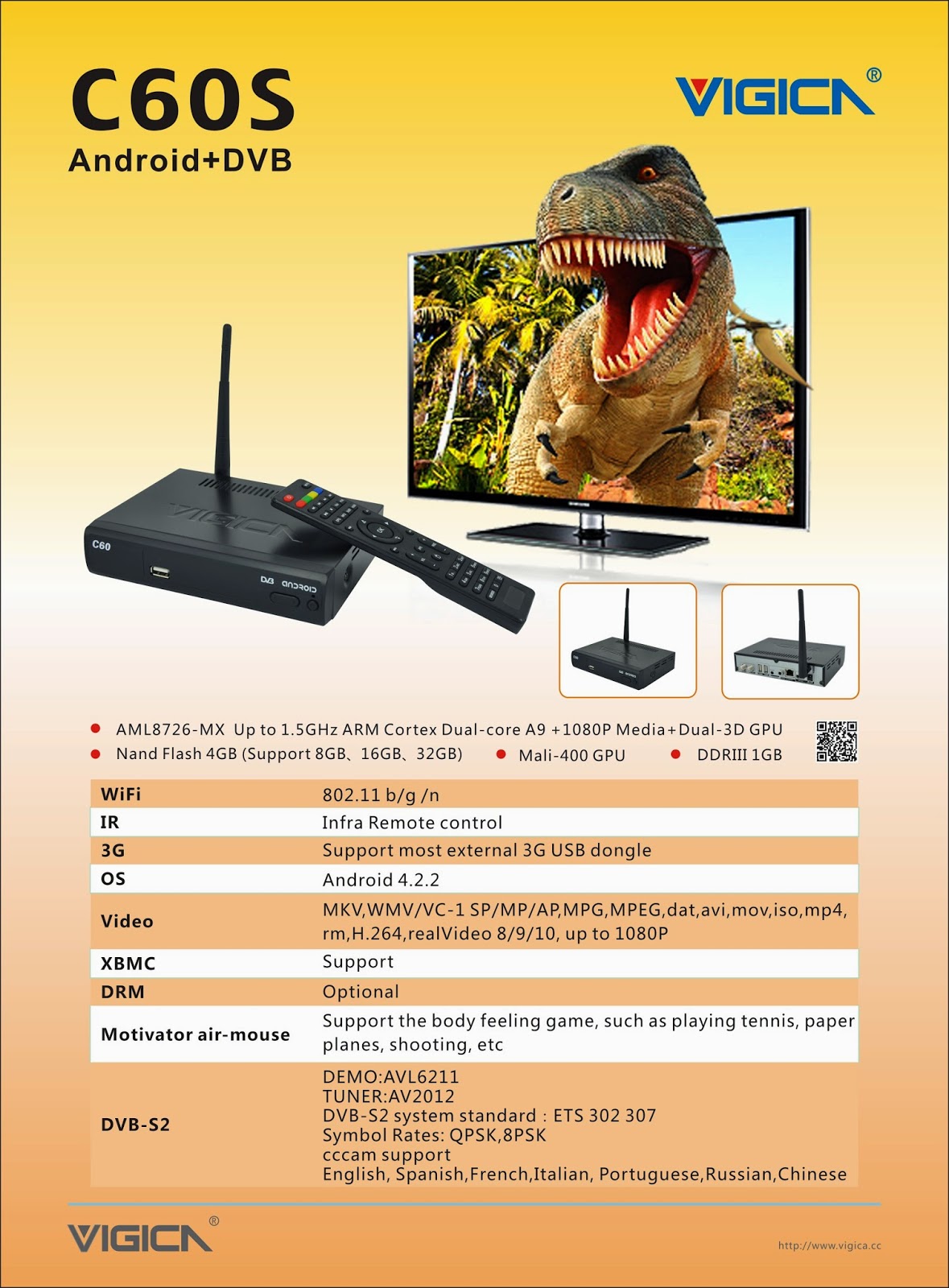
Arabic IPTV Box with 500+ IPTV Arabic Channel android 4.2 smart tv box DVB receiver VIGICA C60S/C70S/V5


NOTICE:

More than 500 channels. BeIN, MBC, OSN, Sky channels
You just need conect the box with iternet to watch tv, without any dish.
The internet >=4 M,you can watch clear LIVE TV program.


Vigica C60S/C70S Android with DVB-S2 support CCCam, Newcamd
Vigica C60T/C70T Android with DVB-T2, Russia, Thai support
Vigica V3, RK3288 4K Video Quad Core TV box
Vigica V5, S805 Quad Core TV Box

2015年4月20日星期一

How to let your cell phone to control android tv box

Mobile phone as a remote control for android tv box vigica c60 and c70

Firslty, please download the applicaiton from the website,

http://www.smartvboxs.com/download.html

Then install the application on your mobile.


Open the SettingMbox in your tv box, connect your wifi, and also make your mobile phone in the same wifi connecting.


Open the advanced icon on menu, then make the Remote control Icon ON. It will show a IP address. Like following 192.168.0.20


Open your mobile phone---choose the application, searching the server, can find the tv box address, connected,


The mobile will show a picture, like remote control, your mobile phone can be as a remote control to operate your tv box.


We can watch tv, video, surfing on line, also can modify the volume.


The mobile also can be as a mouse and keyboard, you can free switch by yourself.


It is very easy. Come on, take out your mobile phone and tv box.

2015年4月15日星期三

The way to backup and restore channel data for Vigica C90S

Dear all customer,


Today let’s learn how to backup and restore channel data for vigica c90s.
Firstly connect your box with tv and antenna.
1. download the channels all you want


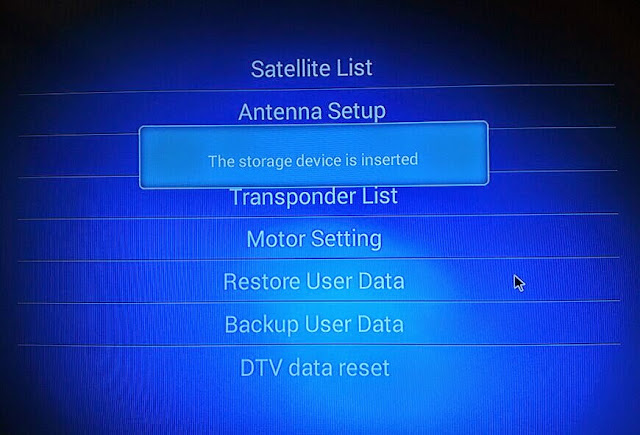
2. Enter installation, insert a USB to the box


3. choose backup the data


4.take another vigica box(just only be Vigica C90S),also enter installation, insert USB, choose restore the data.


5. the channels will copy to other box.


The Data have been entered the second box success. Just only connect with antenna, you can watch same channels like first box.


If you want more box with same channels with the first box, do the same operation.

Android tv box can give you more entertaiment for live channels.

if you want to get this android with DVB-S2 box, please visit www.smartvboxs.com

thanks for your support.

2015年1月13日星期二

Smart tv box DVB S2 to Update firmware of Vigica C60S/C70S, Enjoying!

About Newest Update for Vigica Smart TV Box C60S DVB-S2

About Newest Update for Vigica Smart TV Box C60S DVB-S2

Last Week, we have already posted out the New firmware for Vigica C60S and C70S DVB-S2 CCCam box.


the Details please read here:

Update steps:

Method 1
( Usually, the box cant open normally, cant power on, and you want to make a fixed MAC to the box, please use this method)

   Format the SD card, then put the files and upgrade tools in SD card directly, then Connect the HDMI Cable with Vigica smart box and TV, Insert the SD card to the vigica box, Power on the vigica box, then the box will enter into upgrade system, please dont power off the system, after the box showing erasing, please take off the SD card from the vigica smart box. some seconds later, the box will tell you to input the MAC address by Scaaing or keyboard, after do that, please restard the Vigica box system, the box will auto restart again. update is finished.

Step 1:     Start update

Step2:  Insert the SD card and connect HDMI cable

www.vigica.cc/products/hd-android-smart-tv-box-dvb-s2-android-vigica-c60s.html

Step 3:  Power on the box
www.vigica.cc/products/hd-android-smart-tv-box-dvb-s2-android-vigica-c60s.html

 Step 4: the box will go enter update auto itself
www.vigica.cc/products/hd-android-smart-tv-box-dvb-s2-android-vigica-c60s.html

Step 5:  the front panel showing
www.vigica.cc/products/hd-android-smart-tv-box-dvb-s2-android-vigica-c60s.html


Step 6:  after the box showing erasing
www.vigica.cc/products/hd-android-smart-tv-box-dvb-s2-android-vigica-c60s.html


Step 7: take off the SD card
www.vigica.cc/products/hd-android-smart-tv-box-dvb-s2-android-vigica-c60s.html


Step 8: about 30 seconds, the box will restart

www.vigica.cc/products/hd-android-smart-tv-box-dvb-s2-android-vigica-c60s.html


Step 9:  first entering system after update
www.vigica.cc/products/hd-android-smart-tv-box-dvb-s2-android-vigica-c60s.html


Step 10:   update is success
www.vigica.cc/products/hd-android-smart-tv-box-dvb-s2-android-vigica-c60s.html


Methods 2

( if you just want to update the bugs, the box can work well, please use this one, this methods wont tell you to write down the MAC)

Put the files to the USB or SD card  (Please note: only the Vigica files in USBor SD card  directly)

Power on the Vigica smart box firstly, after enter the main interface, Insert the USB or SD card to the vigica box, then go inside all apps-----Local upgrade, the box will read the data from USB or SD card, choose that files, the vigica Box will go to update by itself, then restart .

Step 1: power on the box, enter the application


Step 2: Insert SD card or USB to the box 

Step 3: choose local upgrade 

  Step 4: choose the firmware, press ok.


Step 5: the box will go entering update, then restart again.

the update will be finished. more details can check ww.vigica.cc


http://www.vigica.cc/products/hd-android-smart-tv-box-dvb-s2-android-vigica-c60s.html

http://www.vigica.cc/products/hd-android-smart-tv-box-dvb-s2-android-vigica-c60s.html


Vigica C60S/ Vigica C70S Android with DVB-S2 support CCCam, Newcamd

Vigica C60T/ Vigica C70T Android with DVB-T2, Russia, Thai support

Vigica C70A Android with ATSC tuner for North American(Canada, USA,Mexico, Korea) 

Vigica V3, RK3288 4K Video Quad Core TV box 

Vigica V5, S805 Quad Core TV Box

Vigica VG328, RK3288 Mini PC. Fly Mouse Ipush Dongle

http://vigicaiptvbox.blogspot.com/ 

http://www.facebook.com/vigicaiptvbox

More details please check www.vigica.cc